Pixel Auditor — Debug Your Tracking Pixels Without Developer Tools
I built Pixel Auditor because I was tired of digging through Chrome DevTools network tabs to figure out why a tracking pixel wasn’t firing. If you’ve ever had to explain to a developer what “the Meta pixel isn’t sending the purchase event” means, you know the pain.
Pixel Auditor is a free Chrome extension that lets marketers and analysts debug their website’s tracking pixels without needing developer tools. Open the side panel, browse your site, and see everything that’s being tracked — what fires, where it goes, and what’s broken.
How It Works
- Open the side panel — Click the Pixel Auditor icon in your Chrome toolbar
- Browse your site — Navigate through your website as you normally would. The extension captures tracking events automatically as you move from page to page
- Check the Status tab first — This gives you an at-a-glance health overview. Green means OK, yellow means warnings, red means errors
- Drill into specific issues — Use the Pixels, Activity, and Requests tabs to investigate anything flagged in Status
All captured data persists as you browse page to page. Nothing disappears when you navigate. Data is only cleared when you click the Clear button. You stay in control.
The Four Tabs
Pixels
Shows every tracking vendor detected on your site — GA4, Meta, LinkedIn, Google Ads, TikTok, Snapchat, Microsoft, Pinterest, Shopify. You’ll see account/property IDs for each vendor with click-to-copy, and an expandable view showing which pages each pixel fired on and how many times.
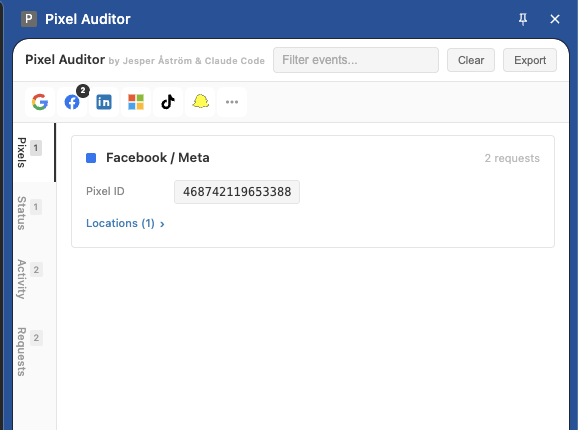
The Pixels tab shows detected vendors with their IDs. Click any ID to copy it.
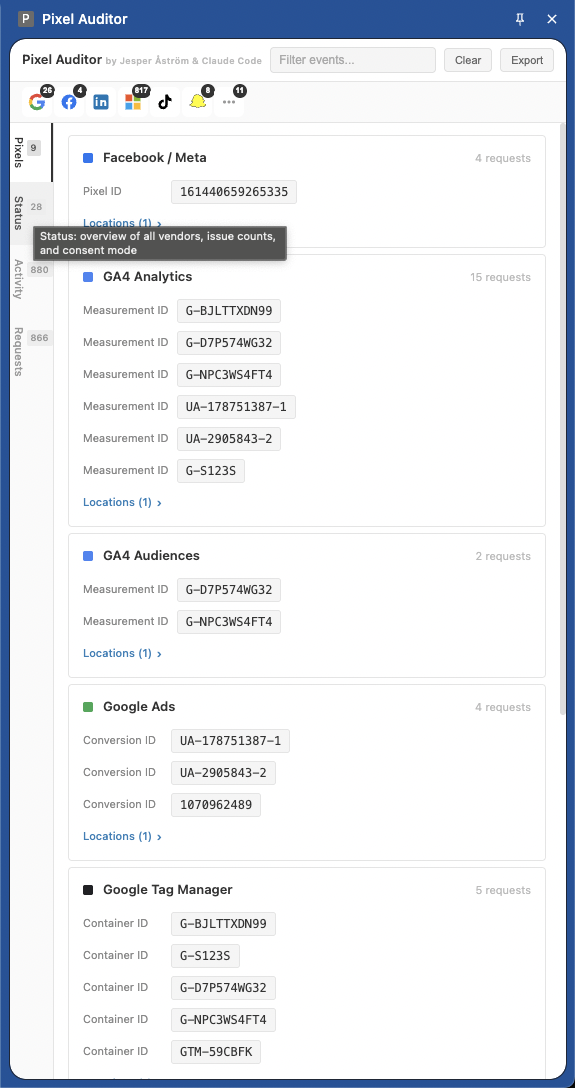
On a complex site, you’ll see multiple vendors with their respective measurement IDs, conversion IDs, and container IDs.
Status
Your at-a-glance health dashboard. Every vendor gets an event count, page count, and status. Google Consent Mode status shows whether ad_storage and analytics_storage are granted, denied, or pending. Expandable issue details show exactly what went wrong — missing parameters, PII leaks, missing account IDs, failed requests.
The “Copy & Debug with AI” button copies a plain-language diagnostic summary and opens Claude AI for step-by-step fix instructions.
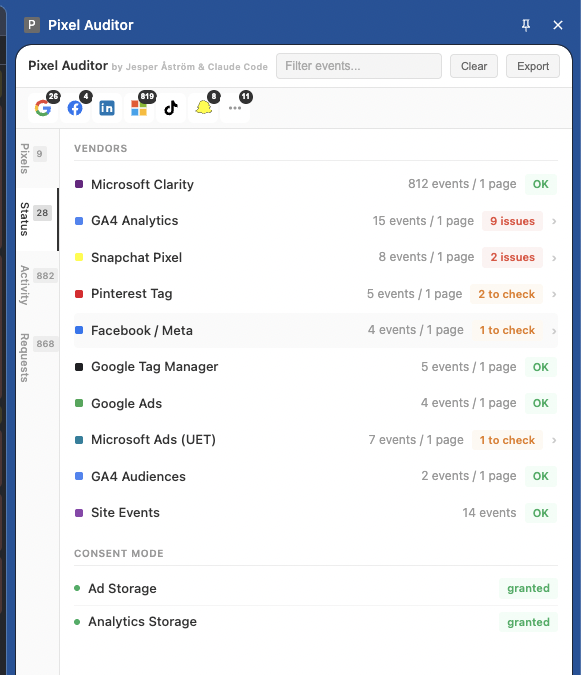
The Status tab gives you an instant health check. Green “OK” means no issues. Yellow/orange badges need attention. Consent Mode status appears at the bottom.
Activity
A unified timeline of all tracking events in chronological order. You’ll see both dataLayer events (“Collected”) and network requests (“Sent”) in the same card. The extension automatically links a dataLayer.push() to the network requests it triggered — showing the full journey from collection to delivery.
Issue badges flag PII, missing fields, consent restrictions, failed requests, and missing account IDs. System events like gtm.js, session_start, and scroll are collapsed into a single group to reduce noise.
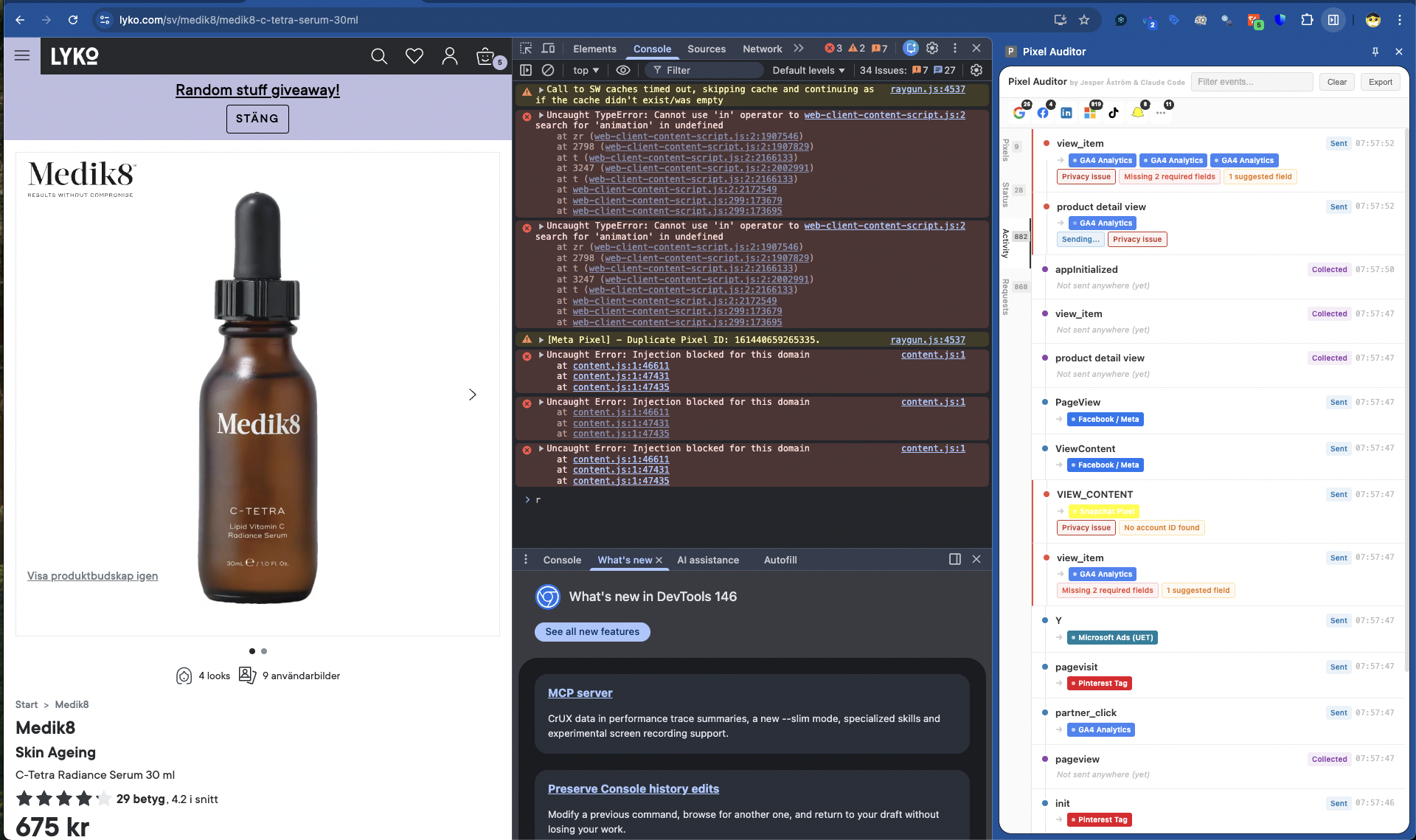
Red badges highlight problems — “Privacy Issue”, “Missing required fields”, and “No account ID found” flagged on specific events.
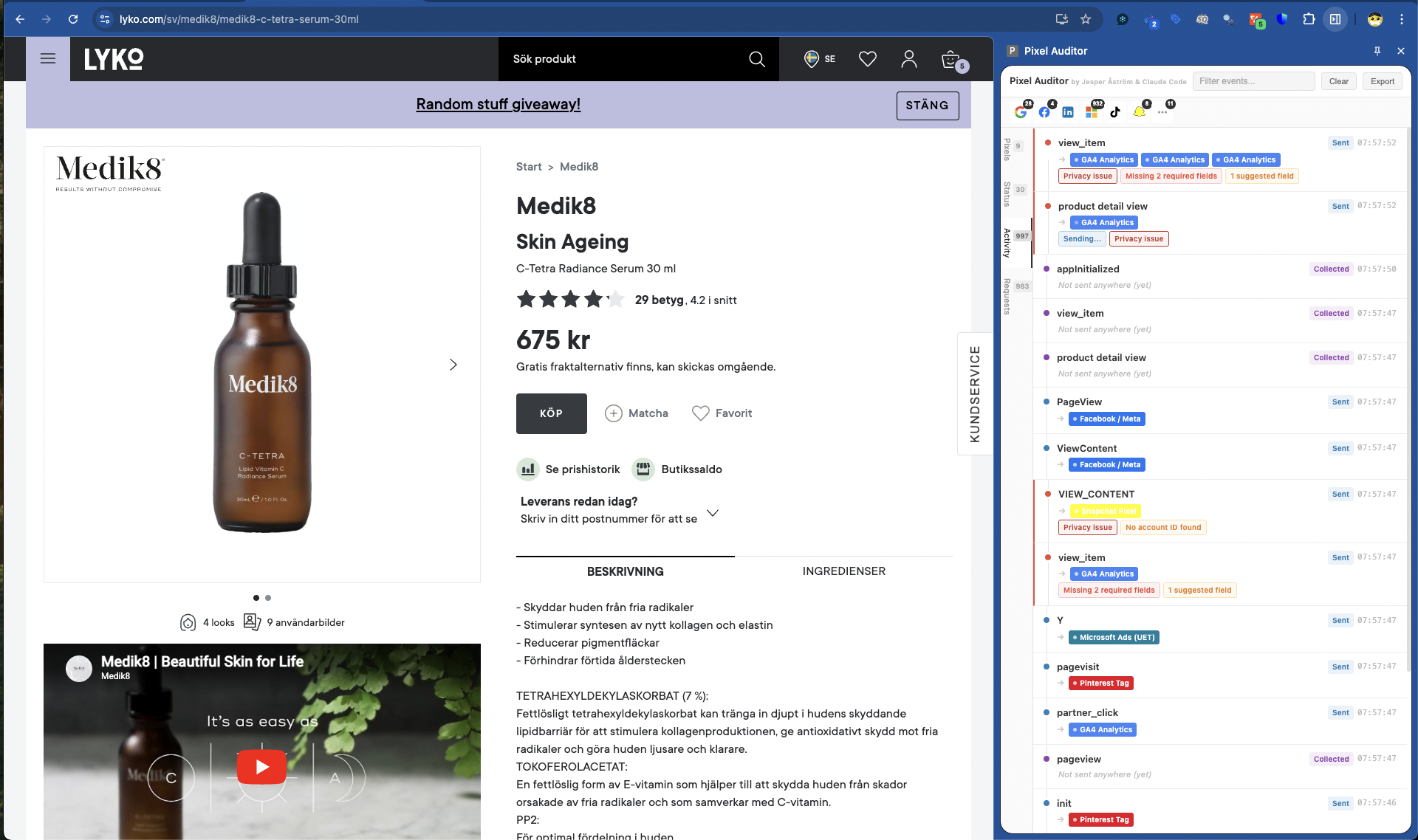
A cleaner view showing events that were collected and successfully sent to their destinations.
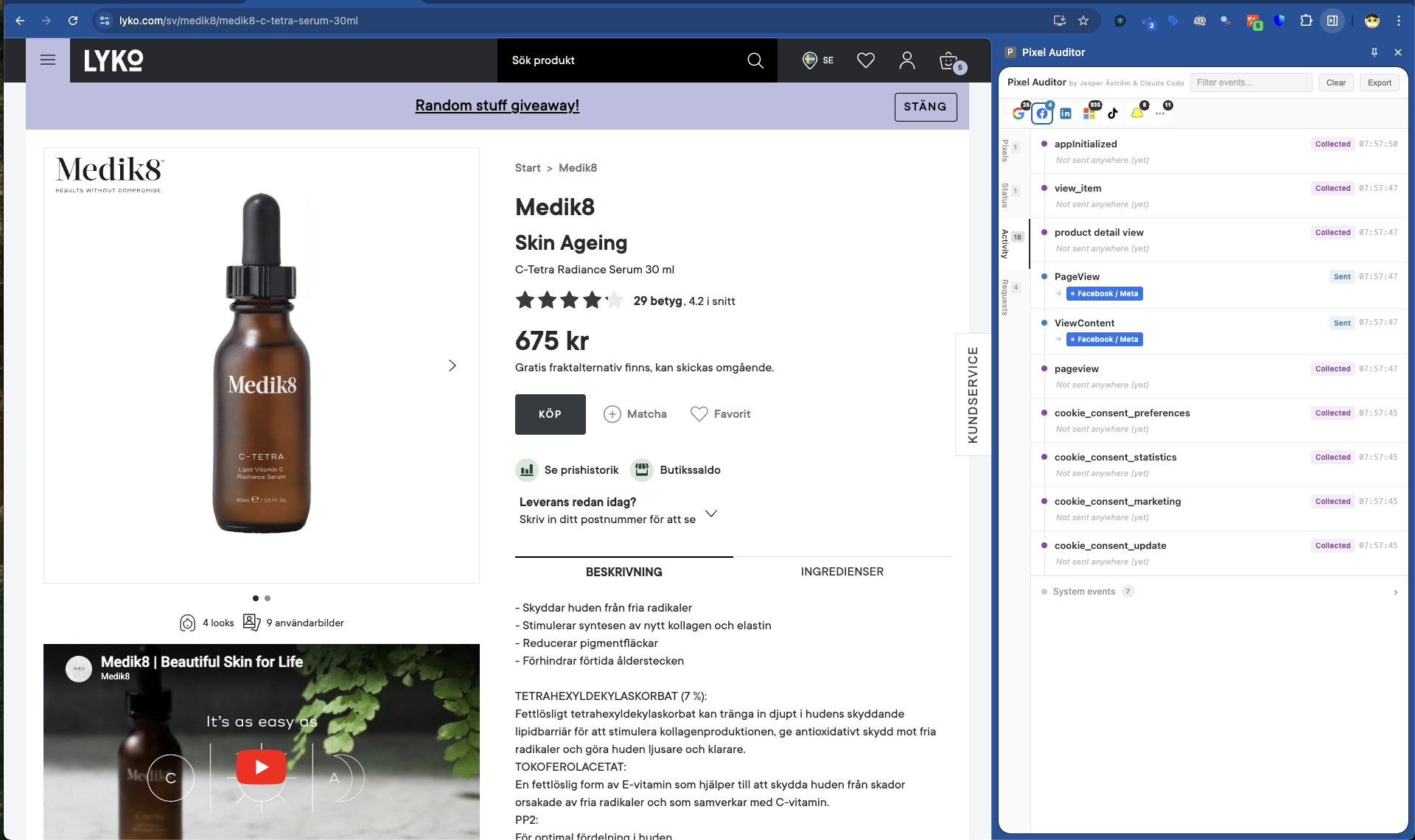
On a simpler implementation, you’ll see a clear flow of events firing to GA4.
Requests
Raw network request view grouped by vendor and account ID. Full parameter decode with human-readable labels (e.g., en → “Event Name”, tid → “Property ID”). GA4 e-commerce event validation against official schemas for 17 standard events. PII detection flags plaintext emails, phone numbers, and unhashed personal data.
What It Catches
PII Detection
Every request is scanned for plaintext emails, phone numbers, and unhashed personal data. Fields that should be SHA256-hashed (like em, ph, fn, ln) are flagged if they contain raw values. When PII is detected, check the Activity tab to find the source, then update your GTM tags to hash personal data before sending.
GA4 Schema Validation
The extension validates 17 standard e-commerce events against Google’s official schemas — purchase, add_to_cart, begin_checkout, view_item, and more. Required parameters that are missing (like transaction_id on purchase events) are flagged separately from recommended parameters.
Consent Mode Decoding
Reads Google’s gcs parameter to show whether tracking is running in full mode, restricted mode, or still pending consent.
Request Status Tracking
Each pixel request shows its delivery status — success, pending, or failed. You’ll know immediately if something isn’t getting through.
Supported Vendors
- Google Analytics 4 (GA4)
- Google Tag Manager (GTM)
- Google Ads
- Meta (Facebook) Pixel
- LinkedIn Insight Tag
- Microsoft Ads (UET)
- Microsoft Clarity
- TikTok Pixel
- Snapchat Pixel
- Pinterest Tag
- Shopify Tracker
Common Troubleshooting
No pixels loading? Make sure the side panel is open before navigating. Events that fire before the panel opens won’t be captured. Also check for ad blockers.
Events show as Collected but not Sent? Check consent mode status. If consent is denied, events won’t send. Also verify your GTM container has tags configured to fire on those events.
PII detected? Update your GTM tags or site code to SHA256-hash personal data before it reaches the dataLayer. For Meta CAPI: hash em, ph, fn, ln, ct, st, zp, country, db, ge fields.
Missing required parameters on GA4 events? Update your dataLayer push to include transaction_id, currency, and items array as needed.
Get It
Pixel Auditor is free. No account required. Add it to Chrome.
Built by Jesper Astrom & Claude Code (Opus 4.6)